ReWire in Live
As of Ableton Live 11, ReWire is no longer available. The developer, Reason Studios, ended support for ReWire in 2020.
Alternatives to ReWire
Using ReWire in Live 10 and earlier
How to reset ReWire in Live 10 and earlier
Enabling ReWire in other DAWS
Troubleshooting ReWire in Live 10 and earlier
Alternatives to ReWire
As an alternative to ReWire, there are three common methods for routing audio between Live and other software on your computer. You can find more information in our How to route audio between applications article.
- Link is a technology that keeps Link-enabled applications synchronized in time over a local network and is available in Live 9.6 and later.
- Applications can also be connected using a Virtual MIDI bus (if they are on the same computer) or a Virtual MIDI network (to connect with other computers).
Using ReWire in Live 10 and earlier
While ReWire may still be visible in Live 10 and earlier, we cannot guarantee that it will work as expected, since the software is no longer updated or supported.
Note: Live is capable of running as either ReWire Host or ReWire Device. However, certain DAWs can only be run as ReWire Host.
- How to install and enable ReWire
- How to use Live as ReWire Host
- How to use Live as ReWire Device
- Limitations of using Live as ReWire Device
How to install and enable ReWire
In order to download and install the ReWire engine, Live needs to be launched successfully once.
On Windows both the ReWire Host and ReWire Device may need to be run in administrator mode to successfully ReWire. To launch a program as Administrator, simply right-click the Live or other DAW icon from your desktop and select "Run as Administrator".
For Mac users, Live may also request admin privileges when first trying to configure the ReWire engine. Simply enter the admin password when prompted.
ReWire is bit depth dependent, therefore both DAWs need to run with the same bit depth (64-bit or 32-bit). Remember that Live 10 is only available in 64-bit mode, so the other DAW must be running in 64-bit mode too. This is handled differently on Windows and Mac:
Windows:
Make sure to install the 64-bit or 32-bit version of your ReWire application as required.
Mac:
Certain applications include both 32-bit and 64-bit formats. You can switch between the two formats as follows:
- Open the Applications folder in Finder.
- Select the application file and press Cmd + I to display the Info window (alternatively, right click on the application file and choose "Show Info".)
- Tick the "Open in 32-bit mode" checkbox here to run the application in 32-bit mode. Leave it unchecked to use the program in 64-bit mode.
How to use Live as ReWire Host
- In order to use Live as ReWire Host, start Live first.
- Once the program has finished loading, you can launch the second application, which will automatically run as ReWire Device (provided that the DAW can be used as ReWire Device).
- By pressing the play button in either the ReWire Host or the ReWire Device application, both DAWs will playback in sync.
- The External Instrument device is the most convenient way of using a ReWire device in Live. Find out how to use the External Instrument device here.
Note: External Instrument is only available in Live Suite or Standard. If you're using Live Intro or Lite, see step 5 (and following) instead. - To hear the audio generated from the DAW running as the ReWire Device, create an audio track in Live and select the ReWire Device in the track's Input Type chooser ("Audio From" drop down menu). Also set the monitor to "In".
- ReWire provides a large number of channels to allow the routing of individual tracks from the ReWire Device application into discrete audio tracks in Live. You can choose which ReWire channels to monitor with a specific audio track in Live using the track's Input Channel chooser (second drop-down menu in the "Audio From" section).
- To send MIDI from Live to the ReWire Device, create a MIDI track in Live first. Next, in the MIDI track's Output Type chooser ("MIDI To" drop-down menu), select the ReWire Device. The Output Channel chooser will now let you choose a specific track or device from the session in the ReWire Device DAW.
How to use Live as ReWire Device
- Launch the DAW you intend to use as ReWire Host first.
- Enable ReWire in the DAW using our guide: How to enable ReWire in other DAWs.
- Launch Live. It should correctly detect that a ReWire application is already running and will switch to ReWire Host mode
Limitations of using Live as ReWire Device
When Live is running as ReWire Device:
- No VST or AU plug-ins are available
- Max for Live is not available
- No physical audio inputs/outputs are available in Live. The ReWire Host application is handling the audio interface and the ins/outs. External material can be recorded with the ReWire Host application only.
- ln Live 1-9, MIDI controllers and Control Surfaces are not available when Live is running in ReWire device mode. (In Live 10, they can be used).
- MIDI sync in and out is disabled
How to reset ReWire in Live 10 and earlier
In order to resolve certain rewire errors, you might need to delete the existing Ableton Live Rewire engine.
1. Close Live
2. Navigate to the following locations and delete the files called "Ableton Live Engine 32" and "Ableton Live Engine 64" (if present):
Mac:
- Macintosh HD/Library/Application Support/Propellerhead Software/ReWire/
- Macintosh HD/Users/[yourusername]Library/Application Support/Propellerhead Software/ReWire
Note: The Library in the Users folder is hidden on Mac. Here's how to access it.
Windows:
- C:\Program Files\Common Files\Propellerhead Software\Rewire
3. Launch Live. Live will automatically re-download the latest version of the rewire engine.
Enabling ReWire in other DAWS
Note: Certain DAWs can only run in ReWire Host mode. Live is capable of running as either a ReWire Host, or a ReWire Device.
Cubase
1. Click on the Devices menu and select Ableton Live ReWire.
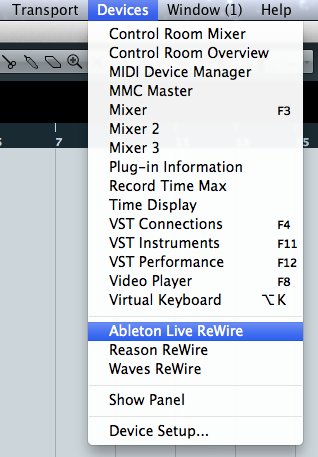
2. A new channel will then be created automatically in Cubase.
3. Before launching Live, you also need to enable at least one stereo ReWire bus: do that by clicking on the respective buttons in the newly opened Ableton Live ReWire Device.

4. Now launch Live: the program should run as ReWire Device.
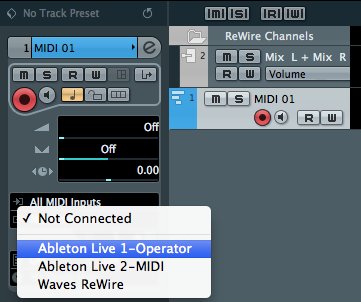
5. To send MIDI from Cubase to Live, create a MIDI channel in Cubase. In its MIDI output section you will be able to choose one of the available Live MIDI tracks as a destination.
Logic Pro 7-9
Logic can only be used as ReWire Host. If Logic is running when Live is launched, then Live will automatically start in ReWire Device mode.
1. Create an Auxiliary Channel in Logic and choose Ableton Live from the Input menu to route audio from Live. If there's no ReWire channel available, turn off "Multi Processor Support" in Logic if this is activated.

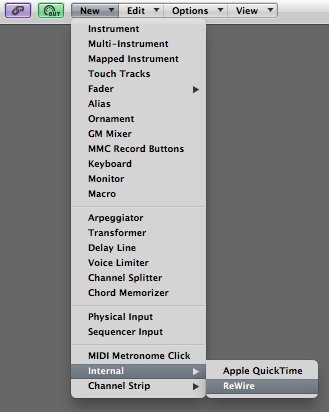
2. To send MIDI from Logic to Live, create a ReWire object in Logic's Environment Window.
3. If you are using Logic 7 or before, please check Logic's audio preferences and disable (uncheck) the option for “Release Audio in Background if Stopped.”
Logic Pro X
Logic can only be used as ReWire Host.
1. Open the Logic Preferences and go the Audio Panel > Devices tab. Here set the "ReWire Mode" menu to either Live or Playback mode.
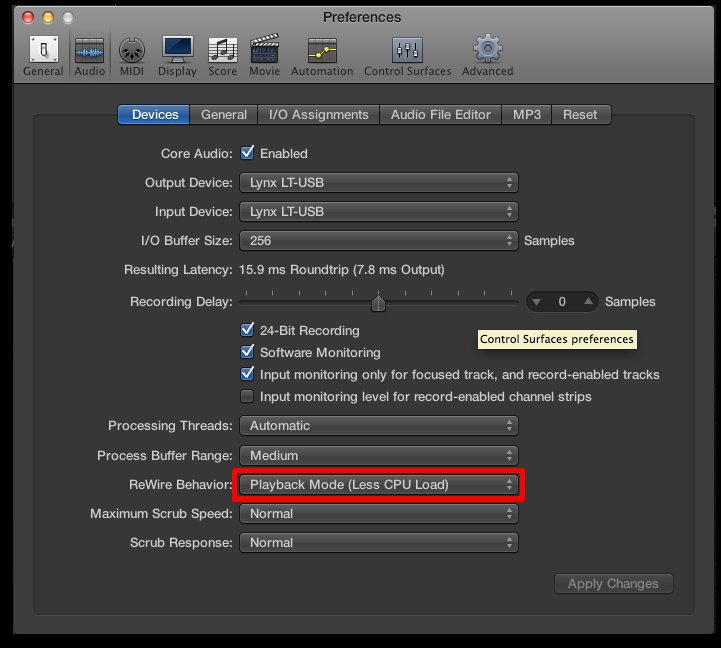
2. Start Logic, then start Live. Live will display "Running as ReWire Device" in the splash screen:
3. To send MIDI from Logic to MIDI tracks in Live, create a new External MIDI track in Logic.
4. In the Library view, choose Ableton Live > (name of MIDI track in Live you wish to send MIDI to).
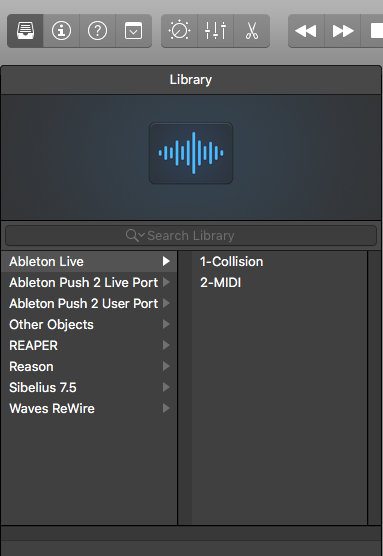
5. To receive audio from Live in Logic, go to the Mixer view. Under Options, choose "Create New Auxiliary Channel Strip".

6. Choose "Ableton Live: RW:Mix L/R" as the input for the Auxiliary Channel Strip. Then turn up the track volume.

Pro Tools
1. Before launching Live, create an Audio or Aux channel and load the instrument "Ableton Live" in the track as an Insert.
2. The benefit of using an audio channel is that you can record audio directly in this track from ReWire without any other routing. On the other side, this channel will need to be set on Input Monitoring, otherwise no audio will be heard.
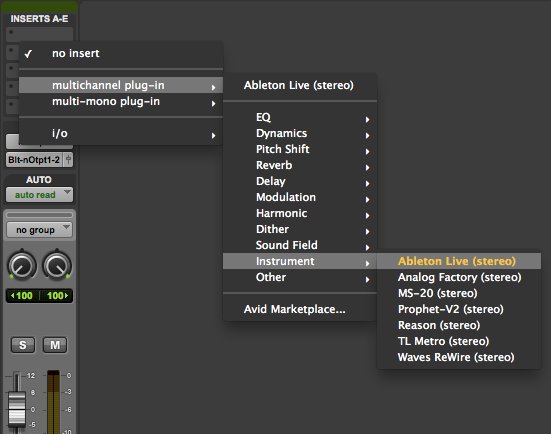
3. Now you can launch Live, which will start as a ReWire Device.
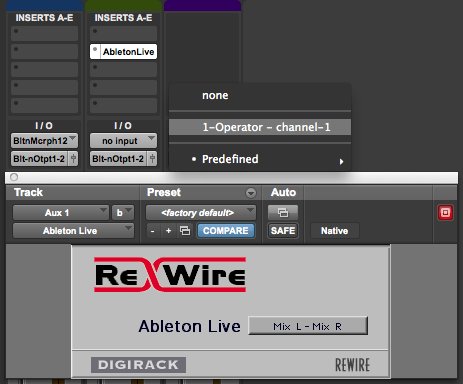
4. To control a Live Device from Pro Tools via MIDI, create a MIDI channel in Pro Tools: the various MIDI channels currently available in the Live Set will appear as a choice in the channel's MIDI out menu.
Reaper
1. Reaper requires you to load an Ableton Live ReWire object before launching Live.
2. Create a new track in Reaper, click on the FX button and choose Ableton Live from the list.
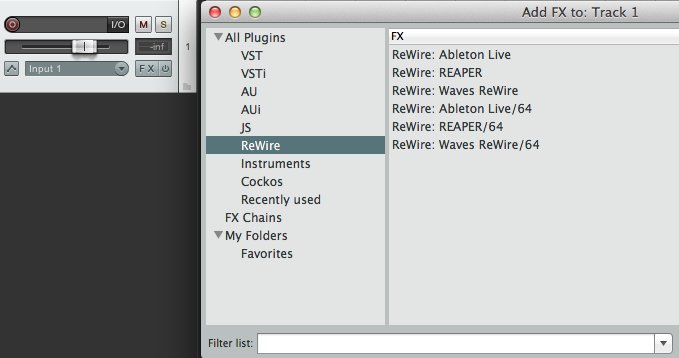
3. To send MIDI from Reaper to Live, create another channel, and click on its I/O button.
4. In the Sends menu, create a routing to the track in Reaper where the Ableton Live object is loaded.

Reason
Note: ReWire has been discontinued in Reason 11. If you have projects that use ReWire, you can keep your previous version of Reason installed alongside Reason 11. Otherwise, Propellerhead suggests that you use Reason Rack Plugin instead.
1. First start Live and once it is fully loaded, launch Reason. In this order, Reason will launch as a Rewire Device.
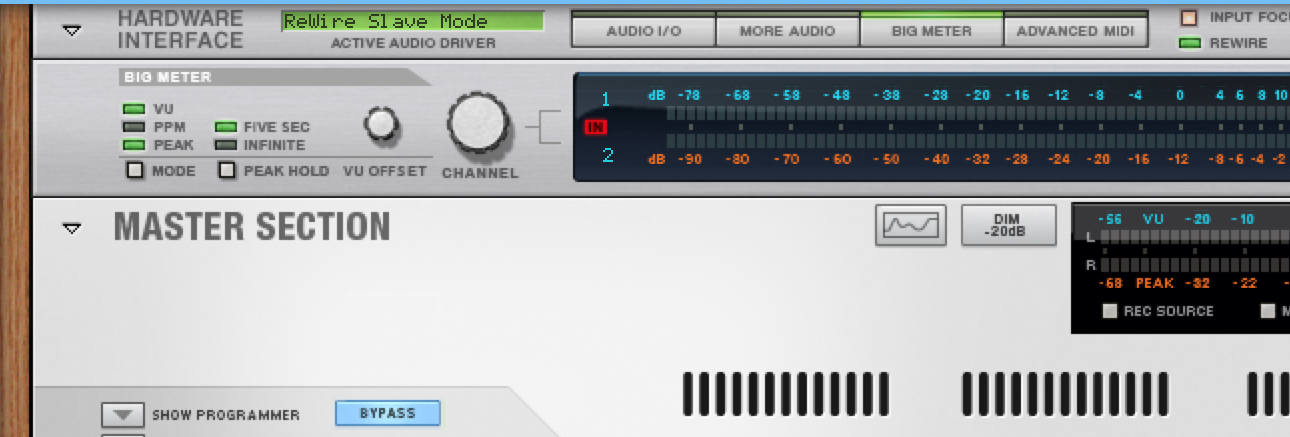
2. The ReWire connection has been successfully established when you see the active audio driver in Reason's preferences as well as the Hardware Interface list "Rewire Device Mode."
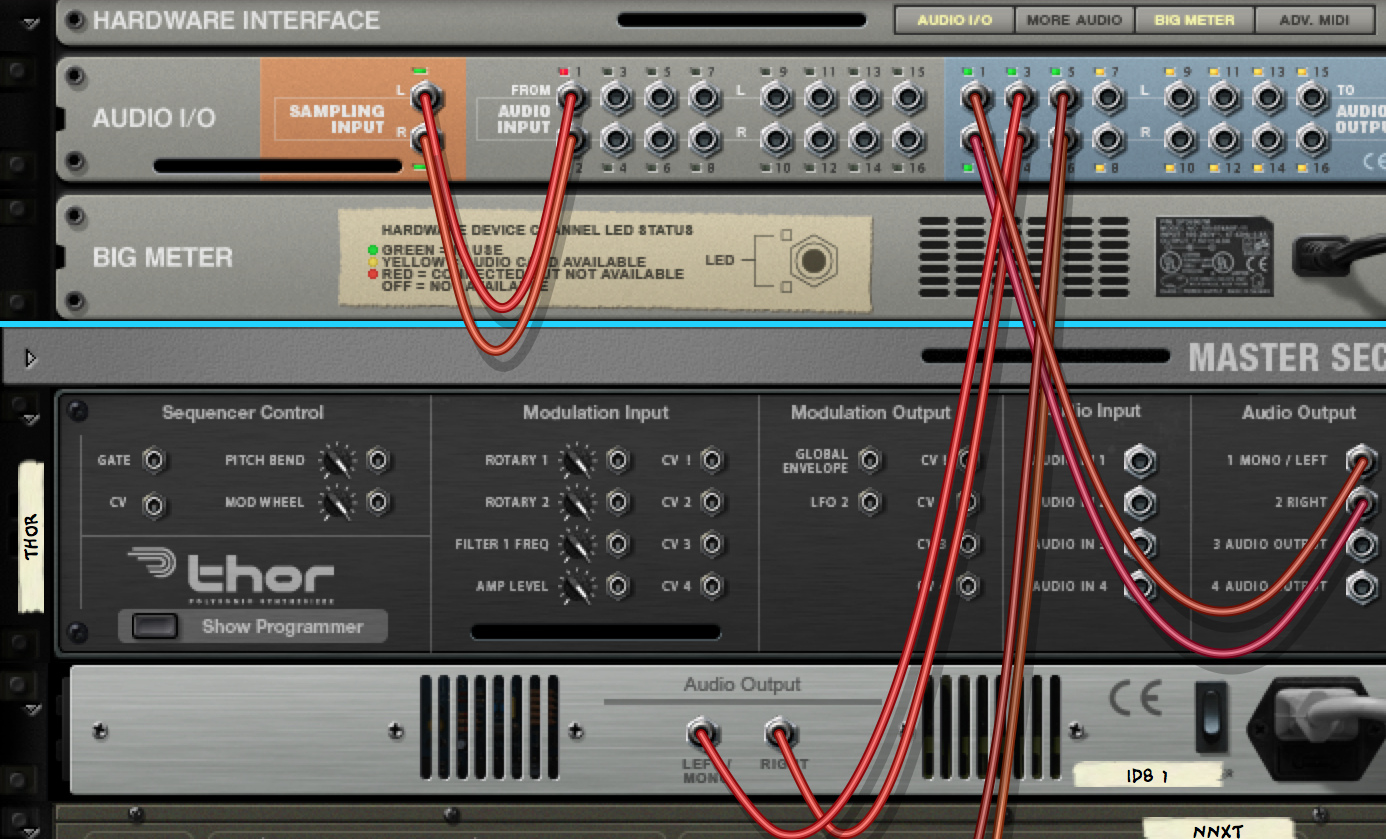
3. If you want to route multiple audio outputs from Reason to Live, wire the respective Reason devices to the available channels of Reason's virtual Hardware Interface. For more information about Reason's routing options, take a look at the Reason manual.
4. To hear the audio generated from Reason, create an audio track in Live and select Reason in the track's Input Type chooser ("Audio From" drop-down menu). Additionally, enable Input Monitoring for this track
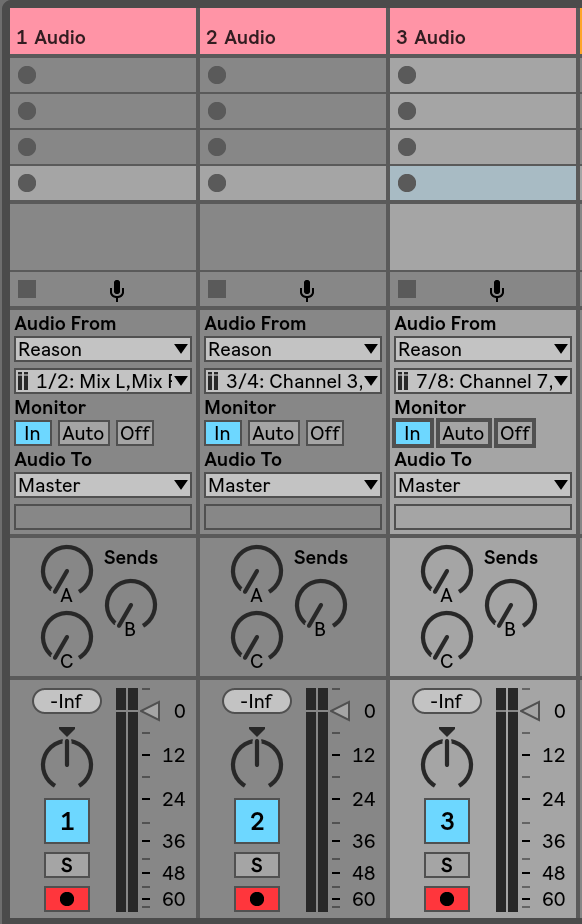
5. By default, the main audio output of Reason is the ReWire channel 1/2. If you have wired multiple audio outputs in Reason's Hardware Interface, create an Audio Track in Live for each stereo output in Reason and select the respective Reason channel in the track's Input Type chooser ("Audio From" drop-down menu).
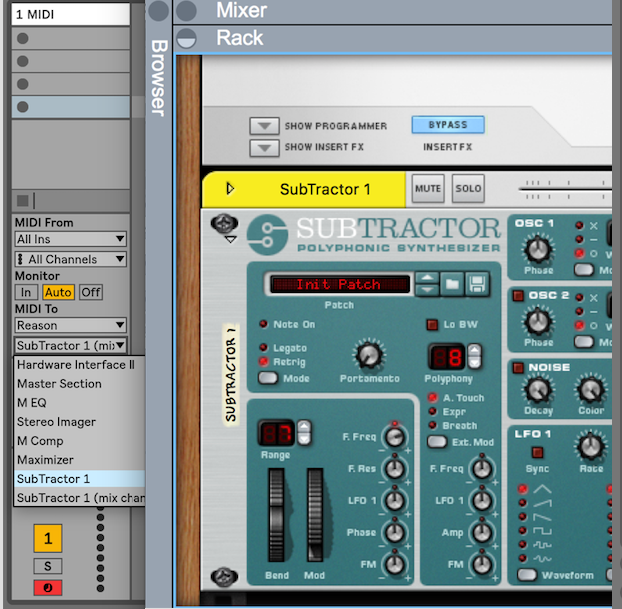
6. As a ReWire Host, Live can send MIDI messages to Reason. Create a new MIDI Track in Live and use the track's Output Channel chooser ("MIDI To" drop-down menu) to select the target device in Reason. Live will list all the devices that have been created in the Reason song and which can be controlled via MIDI.
Troubleshooting ReWire in Live 10 and earlier
While ReWire may still be visible in Live 10 and earlier, we can't guarantee that it will work as expected, since it's is no longer updated or supported.
Common Issues:
- The ReWire Device application fails to start as ReWire Device
- Live fails to start as ReWire Device
- Live quits after 30 minutes when using ReWire
Error Messages when using ReWire:
- Error Message: "The ReWire Host Application has detected a different version of Live than the last one used. Please quit both the current ReWire Host application and Live, and then launch Live once as a standalone application so that it can install its ReWire engine."
- Error Message: "Live has detected another active ReWire Host Application..."
- Error Message: "An Error has occurred while opening the ReWire system" (Mac)
- Error Message - "Detected problems with ReWire Host application. Live will not behave correctly." (Mac)
- Error Message - "Detected problems with ReWire Host application. Live will not behave correctly." (Win)
- Error Message - "The installed ReWire version is too old for this implementation." (Mac)
DAW Specific Issues:
- Live does not appear as ReWire Device in Pro Tools
- Live does not work as ReWire Device with Logic 7
- Live can't be ReWired to Hosts when they use DAE
- Live freezes when ReWired to Cubase
- No sound from Reason when running it as ReWire Device to Live
- Live doesn't work as ReWire Device with Digital Performer
- Loud 'buzz' when running Live as rewire Device to Logic or Digital Performer
The ReWire Device application fails to start as ReWire Device
In Live, no action needs to be taken to enable ReWire: just launch Live and then the audio application you wish to use as ReWire Device should automatically ReWire itself to Live. If it doesn't work, please check the manual for the ReWire Device application.
Live fails to start as ReWire Device
This could be happening for one of the following reasons:
- ReWire Host and ReWire Device are not running at the same bit depth. ReWire will only work if both applications are in 32-bit or 64-bit mode.
- Live has not yet run as standalone once. This is necessary to install its own ReWire engine. Launching Live as standalone is required also each time you switch between different Live versions (between 32-bit and 64-bit, or between Live 8 and Live 9 for example). Close the ReWire Host and restart Live. Once the application has started, you can close it again and launch the ReWire Host. At this point, launching Live next should start it as ReWire Device.
- The Host requires you to activate the ReWire engine before launching the ReWire Device application. This is the case for Cubase, Logic X, Reaper and Pro Tools.
- Neither programs are run in Administrator mode. For Windows users, both the ReWire Host and ReWire Device may need to be run in administrator mode to successfully ReWire. To launch a program as Administrator, please see this guide. For Mac users, Live may also request admin privileges when first trying to configure the ReWire engine, as access to the system configuration is temporarily required. Simply enter the admin password when Live asks you to do so.
Live quits after 30 minutes when using ReWire
If you're using the Live Trial, ReWire Device functionality is limited to 30 minutes of use for every Live run. If you're not using the Trial version, then Live (or your other ReWire DAW) may not be properly authorized. Please check and authorize Live or your other DAW again.
Error Messages while using ReWire
"The ReWire Host Application has detected a different version of Live than the last one used. Please quit both the current ReWire Host application and Live, and then launch Live once as a standalone application so that it can install its ReWire engine."
Usually following the instructions in the message are enough but in case that still doesn't work, you need to simply reset Rewire.
"Live has detected another active ReWire Host application. No ReWire Device applications will be available for use with Live unless you quit the current ReWire Host application and restart Live"
Close all other ReWire enabled applications, including Live. Check if there are multiple versions of Live running. In case you can't find which applications are causing it, restart your computer. Then launch one instance of Live.
"An error has occurred while opening the ReWire system"- (Mac 10.9 & 10.10)
Live fails to install the file "ReWire.bundle" into the local library of a Mac OS X 10.9 Mavericks or 10.10 Yosemite system, when admin rights are required to access this folder.
To manually solve this issue, make sure Live has full read and write access to the ReWire folder in the local library. To do this, please follow the steps outlined below:
1. In Finder navigate to this location:
Macintosh HD/Library/Application Support/Propellerhead Software/ReWire/
Note: "Macintosh HD/Library/" is the local library on top level of the system hard drive. There is a second library located in the user folder, which is hidden by default on current Mac systems. The library in the user folder is not relevant for this procedure.
2. Select the folder "ReWire" by left-clicking on it with the mouse.
3. Press [cmd][I] on your computer keyboard to open the Info window.
4. In the lower part of this window you will find the Sharing & Permissions pane.
Info Window ReWire Folder (local library)
Note: the list of the Sharing & Permissions pane might look different depending on which ReWire application created this folder initially. We don't need to be worried about that at the moment. Just follow the next steps to fix the error shown by Live.
5. Click on the lock symbol at the bottom of this window, in case the lock is closed. You will be asked to enter your admin password. Enter it and confirm it by pressing Enter on the computer keyboard.
Sharing & Permissions Pane Lock
6. Now, please click the "+" symbol to add a user to the Sharing & Permissions pane.
Add User to the Sharing & Permissions Pane
7. Select your user from the appearing window.
Add User to the Sharing & Permissions Pane
8. After being added to the list, make sure it has read & write access.
Note: in case your user is already in that list, you don't need to add it again. Just make sure it has read & write access.
Now, start Live again.
Mac OS X 10.8 Mountain Lion and before are not affected by this issue. The same goes for 10.11 El Capitan and after.
"Detected problems with ReWire Host application. Live will not behave correctly" (Mac)
If you try to run Live as a ReWire Device to Logic, the problem may be a sample rate mismatch between Logic and Live. As a workaround, please try the steps below to let Live know the correct sample rate:
- Open Logic
- Load your song in Logic
- Set the desired sample rate in Logic
- Press Play and then press Stop in Logic
- Start Live
Detected problems with ReWire Host application. Live will not behave correctly" (Win)
When trying to run Live as a ReWire Device to Cubase, the error can be solved by disabling "Release ASIO driver in background" option in Cubase (not checked).
"The installed ReWire version is too old for this implementation" (Mac)
When starting Live the following error message is shown: "The installed ReWire version is too old for this implementation. No ReWire Devices will be available."
A third-party ReWire application is not compatible with the current ReWire version installed on the system. In most cases it seems to be either Melodyne Single Track or Waves.
Updating or uninstalling the third-party application should solve the problem.
DAW specific issues
Live does not appear as ReWire Device in Pro Tools
This may be happening because Live was installed after Pro Tools. Pro Tools only scans for Rewire instruments after its initial installation. In order to make Live (or any other ReWire application installed after Pro Tools) appear in Pro Tools, you'll need to force it to rescan for these ReWire instruments:
- Navigate to the the following folder:
Windows:
C:\Users\[username]\AppData\Roaming\Avid\Pro Tools\
Mac:
Macintosh HD/Users/[username]/Library/Preferences/Avid/Pro Tools/
Note: These folders are usually hidden. Here's how to access hidden folders on Windows and Mac. - Delete the file "InstalledAAXPlugIns".
- Re-open Pro Tools. Find out more about how to set up Live with Pro Tools via ReWire here.
In case deleting the "InstalledAAXPlugIns" file did not solve the issue:
- Check if "DigiRewire" has been wrapped by using Novation's Automap.
- If so, remove the file "DigiRewire (Automap).dpm" from Pro Tools' plug-in folder - or use Automap to remove the wrapper.
Finally, in case neither of the above solutions worked, un-install and re-install Pro Tools.
Live does not work as ReWire Device with Logic 7
Check Logic's audio preferences and disable (uncheck) the option for “Release Audio in Background if Stopped.” This applies to Logic versions up to Logic 7.
Live can't be ReWired to Hosts when they use DAE
DAE is the abbreviated form of Digidesign Audio Engine. This is the driver software used to access TDM hardware, including use of on-board DSP chips, in Logic Pro and other DAW's. It's currently not possible to run Live as a ReWire Device if the Host application is using DAE because it has a different behavior under DAE which can't be recognized by Live.
Live freezes when ReWired to Cubase
In Cubase, the setting for the ASIO driver “Release Driver when Application is in Background” is activated. In Cubase, under Devices → Device Setup → VST Audio System, deactivate the setting “Release Driver when Application is in Background”.
No sound from Reason when running it as ReWire Device to Live
If there is no sound from Reason when running it as ReWire Device to Live or if it doesn't appear as an option in the track and the only options are "None" or "Mixer", you need to do the following: look at the Input Type chooser in Live to select Reason; make this visible by selecting In/Out from the View menu. You were probably looking at the Device chooser, which is for automating controls in Live. Also be sure that you have switched monitoring to In for the track. To learn how to use Live and Reason together, please see this ReWire tutorial.
Live doesn't work as ReWire Device with Digital Performer
Make sure to use an Aux track in Digital Performer to enable ReWire and that you are launching Digital Performer first. Please refer to Motu's ReWire tutorial for further information.
Loud 'buzz' when running Live as ReWire Device to Logic or Digital Performer
When using a pre-roll, or start a sequence before measure one, Live emits a loud buzz before measure one. There currently is not a fix other than not using a pre-roll or not starting the sequence before measure one.