Updating Live
Follow the steps in this guide to update your installation of Ableton Live. Using the latest update to your version of Live is always recommended. Learn more about Live Minimum System Requirements.
Automatic updates
Manual updates
Selecting the correct installer
Updating Live 11
Note: If you've used Live Beta and would like to transfer your preferences to an updated public release version of Live, you can copy them as explained in this guide: Using the Trial or Beta Preferences in a release version.
Automatic updates
- Open Live's Preferences → Licenses/Maintenance or Licenses & Updates
- Under Maintenance → Get Automatic Updates, select Always.
For more help, visit Troubleshooting Automatic Updates.
Compatibility after updates
Live Sets can be opened in the Live version in which they were created/saved, and any later version. However, please note:
- Once Live has been updated, if you open and Save a Set, it can no longer be opened in an earlier version. This includes after updating (either automatically or manually) to a new minor or "point" version. For example, Sets saved in Live 12.2 cannot be opened in 12.1 or earlier.
- After updating, you'l be prompted to save a new version of the Set to preserve compatibility. Learn more about Backward Compatibility.
Manual Updates
Sometimes it's necessary to update Live manually. To do this, visit your Ableton account to download and install the most current version. Detailed instructions are linked here:
To avoid accidental overwriting of an older set, Live will prompt you to save a new version, using the option "Save as…” Make sure to save this version under a new name:
Updating Live 11.3 for Push 3 on Windows
To install Push 3 drivers, install the current version of Live manually from your Ableton account, as described below. If Live 11.3.x is installed via auto-update, the Push 3 drivers may not be installed.
Uninstalling Live
It's not necessary to uninstall previous versions of Live before updating. However, if you wish to uninstall Live, you can follow these steps: Uninstalling Live (Mac) / Uninstalling Live (Windows).
Selecting the correct installer
Ableton.com will automatically detect the correct installer for your computer’s operating system. You can also select manually between different builds of Live 11, if needed. Here’s how to choose the right installation package for your system:
macOS Universal
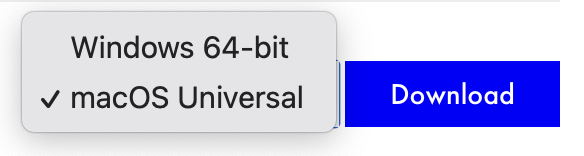
Apple silicon (M-series)
Apple Intel running macOS 10.14 Mojave or later
macOS Intel-only

The Intel build of Live 11 is for use on Intel-based Macs running macOS 10.13 High Sierra only.
Note: Running Live (Universal) as an Intel application
- You can force Live to run as an Intel application via Rosetta 2 on a Mac with Apple silicon, as explained in the guide How to open Live using Rosetta on macOS. However, this isn't necessary if your plug-ins are updated to run natively on Apple Silicon. Please check the latest Apple silicon and macOS compatibility information provided by each plug-in developer.
Windows
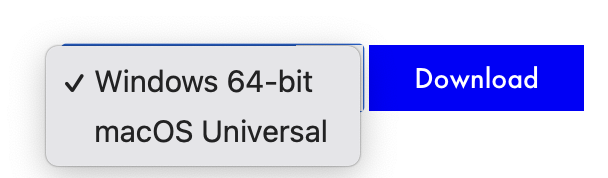
The Windows 64-bit download package is supported for all compatible PCs and Windows OS versions. Learn more about Windows Compatibility with Live.
Installing multiple versions
To install multiple versions of Live, follow the steps here: Installing multiple versions of Live.
Updating Live 11
Once Live 11.1.x has been installed, your version will be updated automatically if automatic updates are enabled as described above.
How to update from Live 11.0.12 or earlier
To update from Live 11.0.x, you must install the current version manually via Ableton.com. If your installed version is Live 11.0.12 or earlier, Live 11.1 or later will not update automatically, even if Automatic Updates are enabled in Live's Preferences. Login to your Ableton account for the link to download and Install the current version of Live.
More information about installing Live is available in these articles: